
4. Search & History
Searching
Search Interface
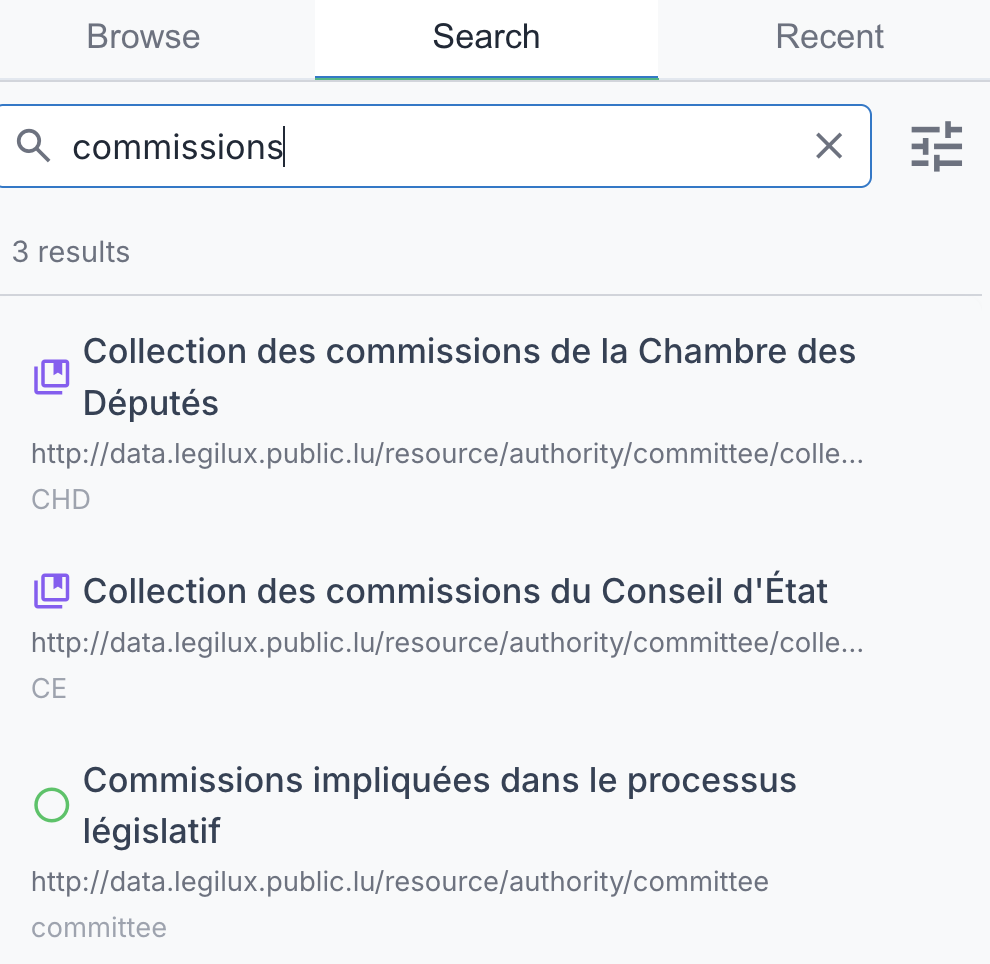
Click the Search tab in the left sidebar to access the search panel.
Basic Search
- Enter your search term — results appear as you type
- Refine your query to narrow results
Results show:
- Resource label and notation
- Which field matched (prefLabel, altLabel, definition)
- The scheme containing the resource (when applicable)
Search Settings
Click the settings icon ( ) next to the search input to configure match mode, search targets, and scope. See 5. Settings — Search Section for details.
Settings are saved automatically and persist across sessions. When you change settings, any active search re-runs automatically.
Navigating Results
Click any search result to:
- Switch to the browse tab and select that item
- Show details in the right panel
- Switch scheme automatically when needed
- Navigate to schemes, concepts, collections, and ordered collections
- Add the item to your Recent History
Recent History
Viewing History
Click the Recent tab in the left sidebar to see your browsing history.
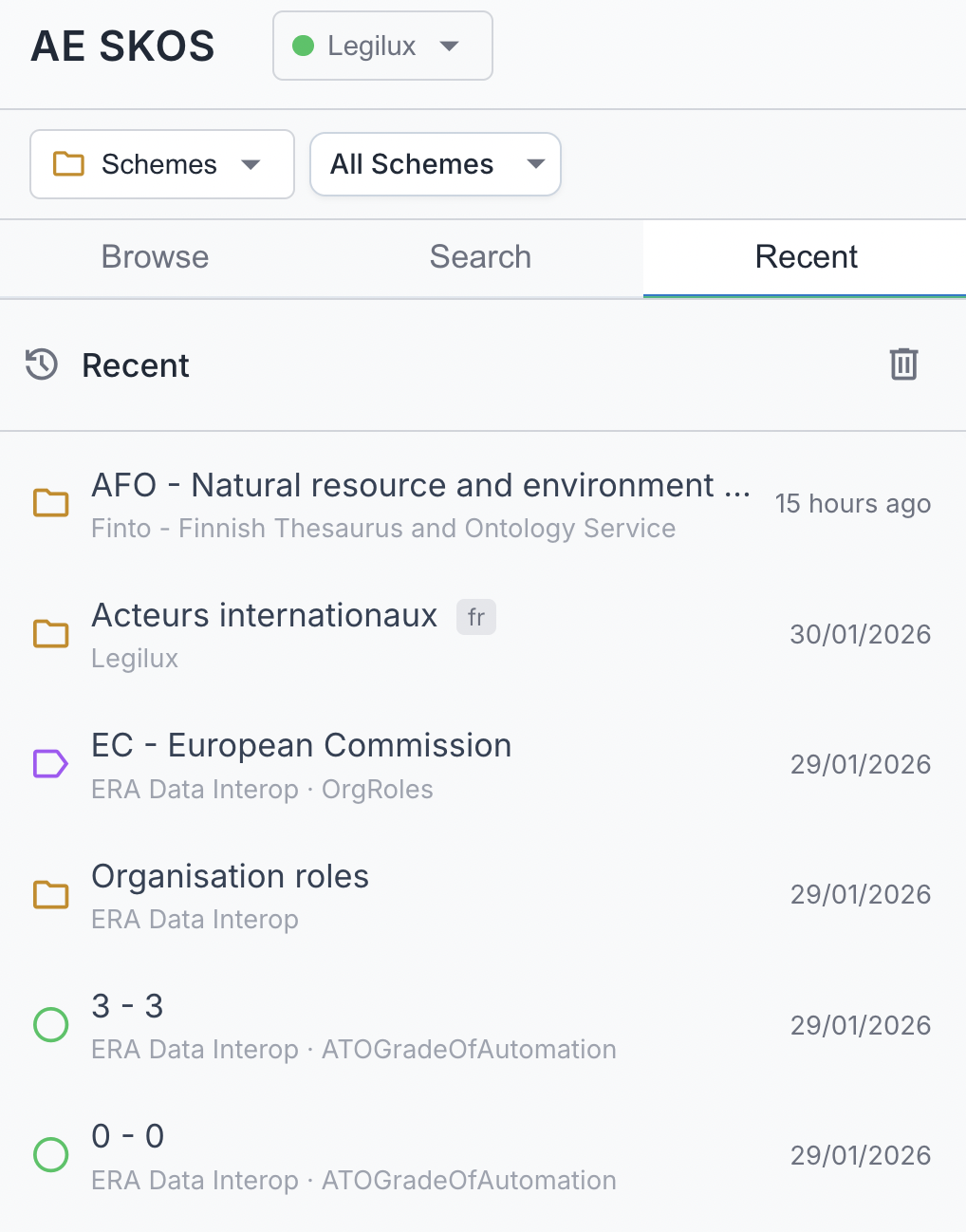
Each entry shows:
- Icon indicating type (folder for schemes, label/circle for concepts)
- Label and notation
- Context (endpoint name, scheme name)
- Relative timestamp (e.g., "5 min ago")
Navigating from History
Click any history entry to:
- Switch to the browse tab and navigate to that item
- Switch endpoints or schemes if necessary
- Expand ancestors and scroll the concept into view
- Show its details in the right panel
Clearing History
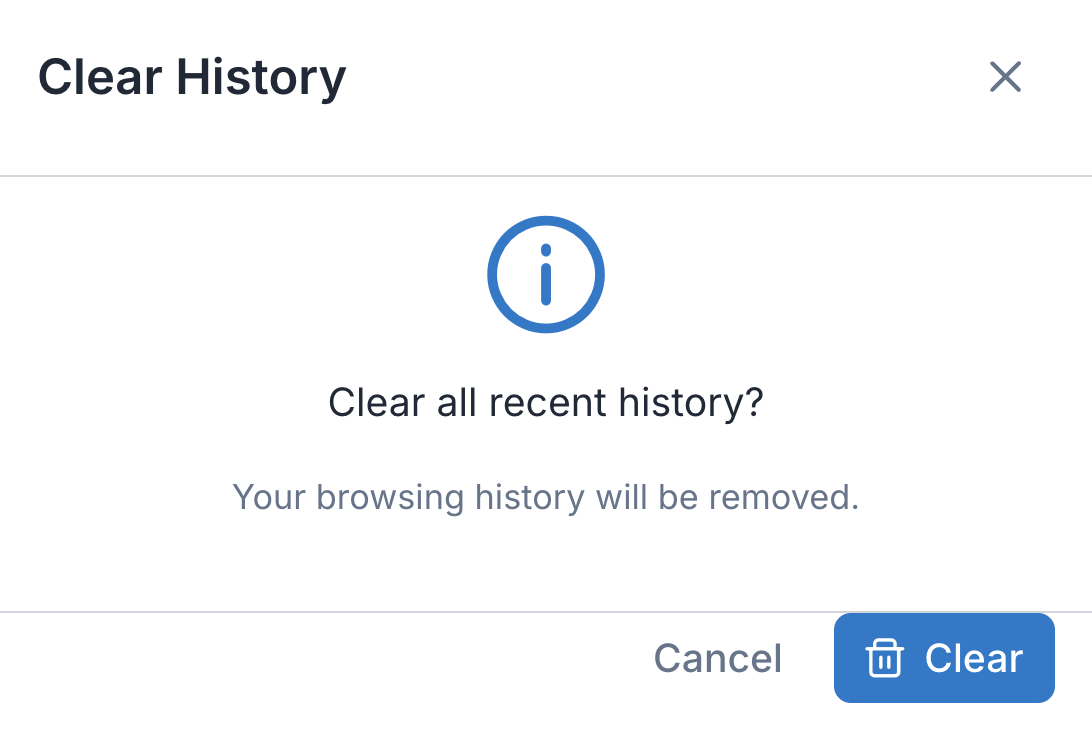
Click the delete button ( ) in the history header. A confirmation dialog appears before clearing.
History Persistence
History is saved to your browser's localStorage and persists across sessions. Up to 50 items are stored.