
5. Settings
- Opening Settings
- Display
- Language
- Deprecation
- Search
- Developer
- About
- Pre-configured Deployments
- Reset to Defaults
Opening Settings
Click the settings button ( ) in the header toolbar. The Settings dialog uses a sidebar navigation with six sections.
Display Section
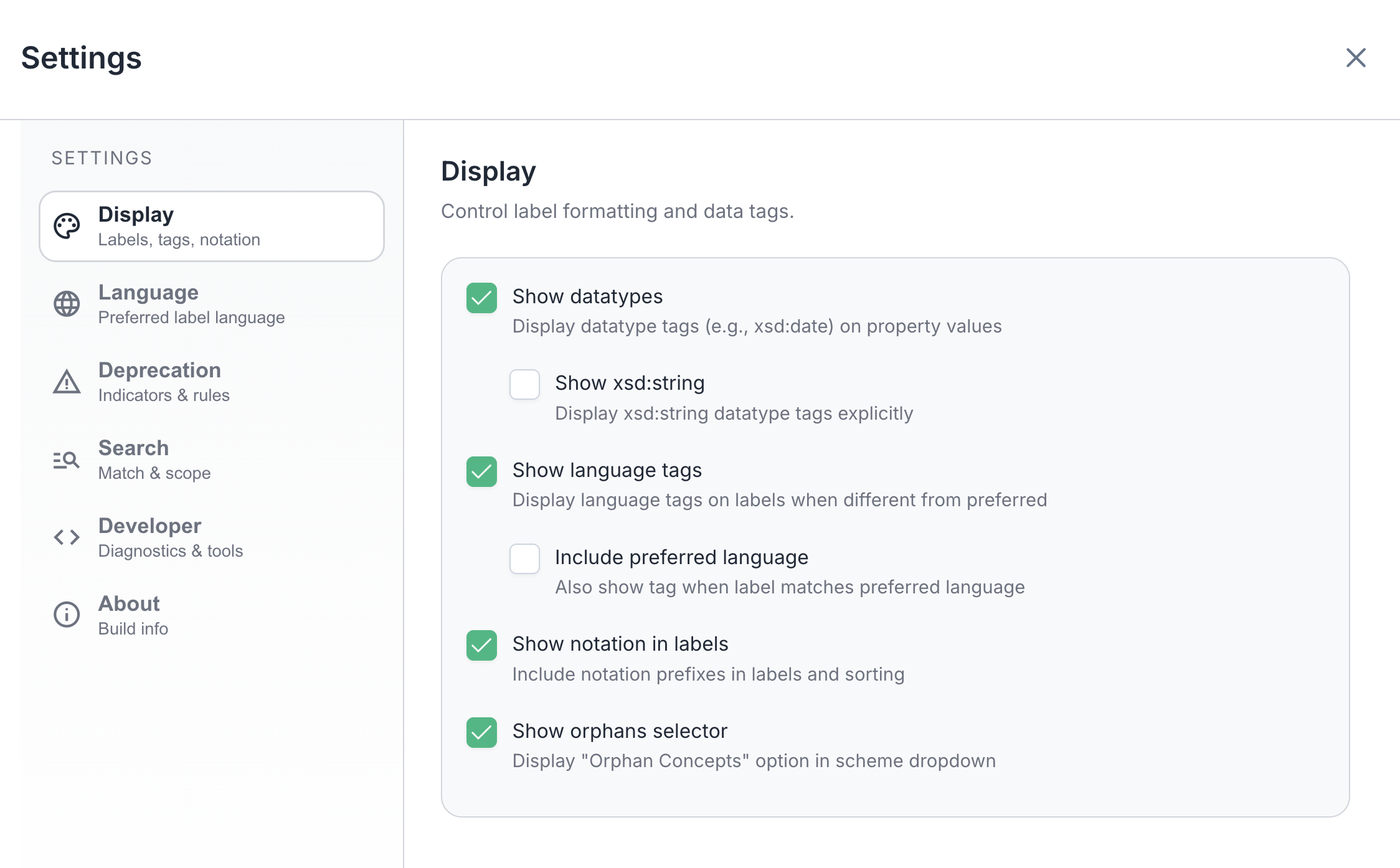
Control how labels and metadata are formatted in the details panel.
| Setting | Description |
|---|---|
| Show Datatypes | Display datatype tags (e.g., xsd:date, xsd:boolean) next to property values in the details panel. |
| Show xsd:string | When Show Datatypes is enabled, also display the xsd:string tag on plain text values. Off by default since most values are strings. |
| Show Language Tags | Show language codes (e.g., en, fr) on labels when the language differs from your preferred language. |
| Include Preferred Language | Also show the language tag on labels that match your preferred language. Only applies when Show Language Tags is enabled. |
| Show Notation in Labels | Prefix concept labels with their notation code (e.g., "01 - Agriculture" instead of "Agriculture"). Also affects sorting. |
| Show Orphans Selector | Add an "Orphan Concepts & Collections" entry to the scheme dropdown for finding disconnected concepts. See Orphan Concepts. |
Language Section
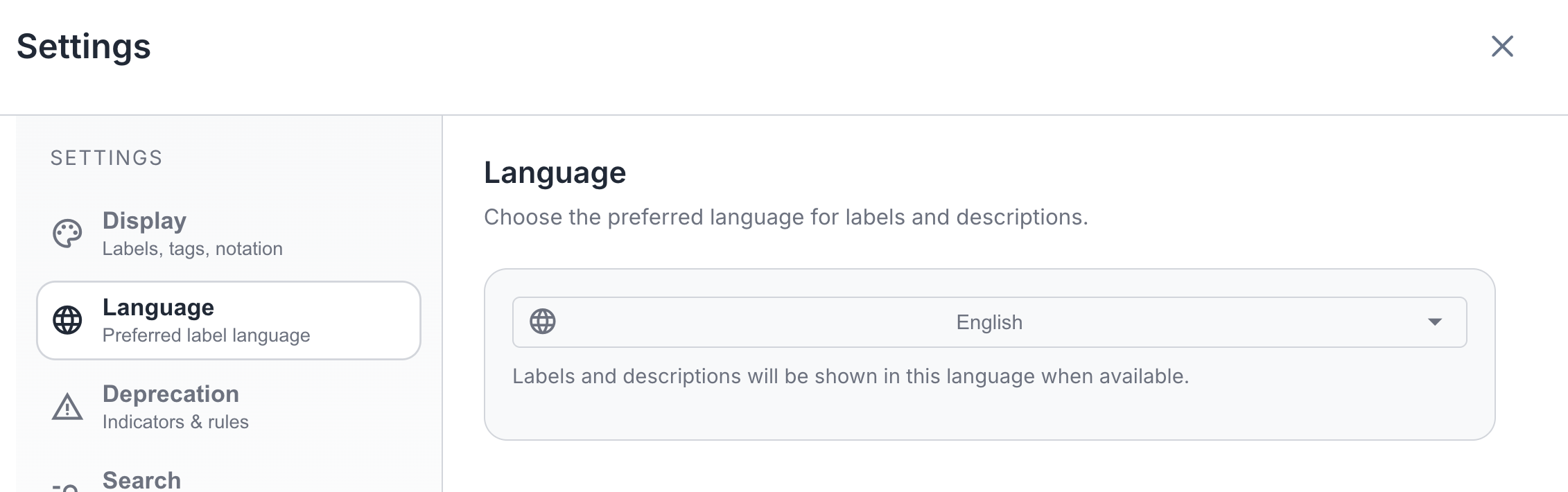
Select your preferred language for viewing labels. Only languages detected in the current endpoint are shown. The dropdown shows all available languages with their full names.
Tip: You can also quickly switch languages from the header toolbar without opening Settings.
Deprecation Section
| Setting | Description |
|---|---|
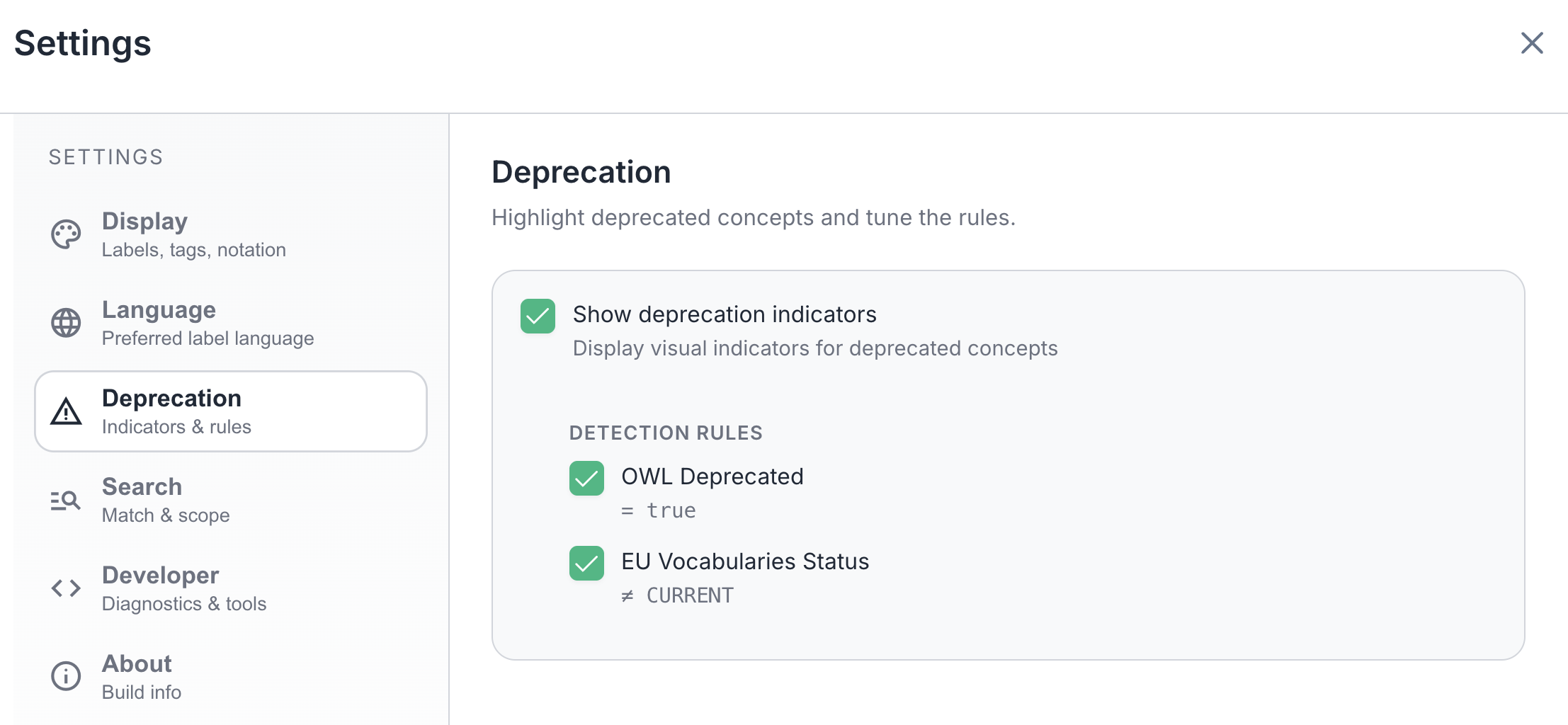
| Show Deprecation Indicators | Toggle visibility of deprecated badges. See how deprecation appears in the tree. |
Detection Rules: Configure which conditions indicate deprecation:
- OWL Deprecated:
owl:deprecated = true - EU Vocabularies Status: Status not equal to CURRENT
Search Section
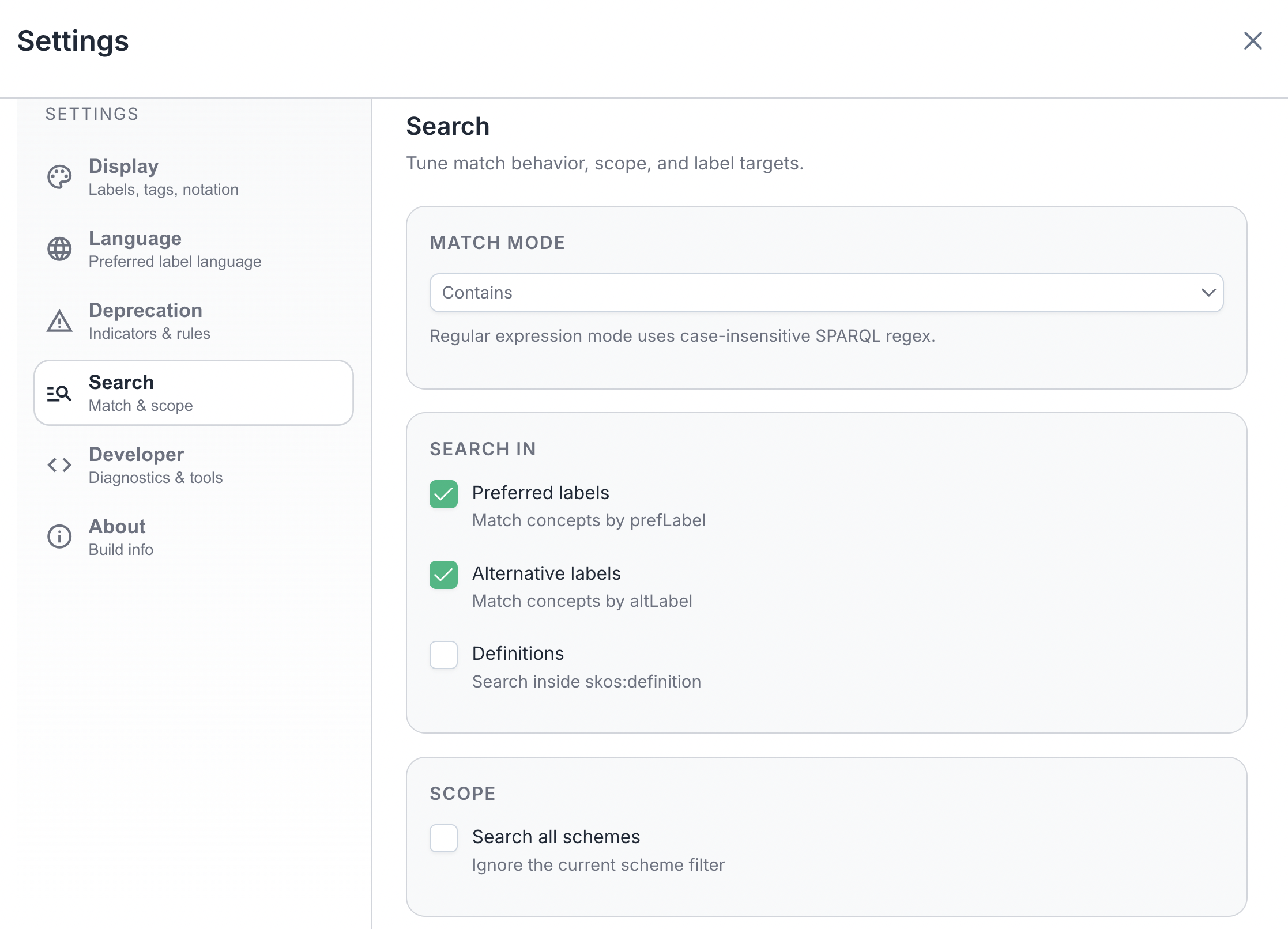
Configure search behavior (also accessible via the settings button in the Search panel):
| Setting | Description |
|---|---|
| Match Mode | How search terms are matched: Contains (substring match anywhere), Starts with (prefix match), Exact match (full label must match), or Regular expression (regular expression pattern using SPARQL regex). |
| Search in Preferred Labels | Include skos:prefLabel values when searching. Enabled by default. |
| Search in Alternative Labels | Include skos:altLabel values when searching. Enabled by default. |
| Search in Definitions | Also search inside skos:definition text. Off by default since it can slow down queries on large endpoints. |
| Search All Schemes | Search across all concept schemes in the endpoint, ignoring the currently selected scheme filter. Enabled by default. |
Developer Section
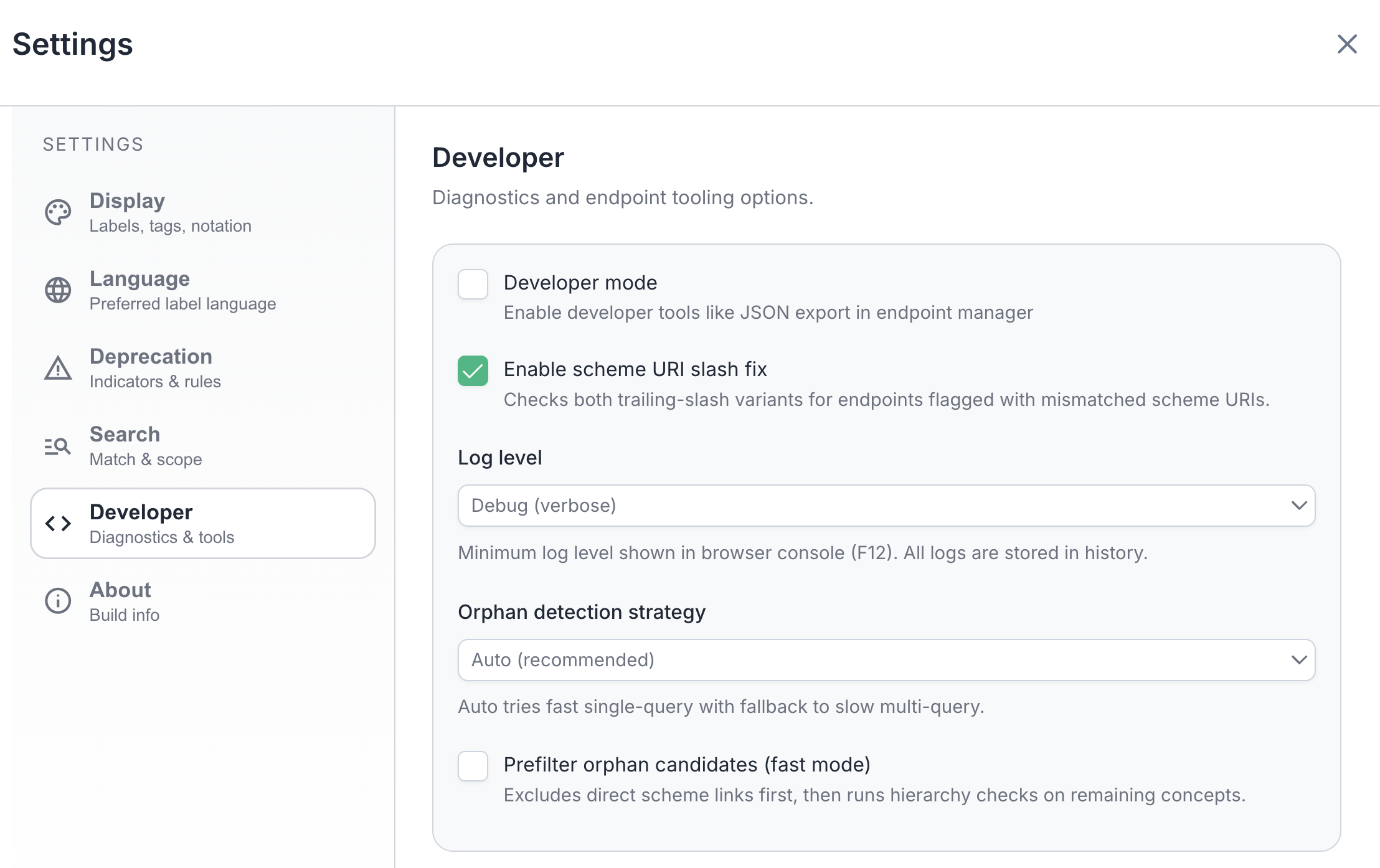
| Setting | Description |
|---|---|
| Developer Mode | Enable developer tools like JSON export in the Endpoint Manager. |
| Enable Scheme URI Slash Fix | Checks both trailing-slash variants for endpoints flagged with mismatched scheme URIs. Turn this on if the Scheme URI mismatch tag appears on an endpoint. |
| Log Level | Minimum log level shown in the browser console (F12). Higher levels mean fewer messages. |
| Orphan Detection Strategy | Auto (recommended) tries a fast single-query approach first, with fallback to a slower multi-query method. |
| Prefilter Orphan Candidates | Excludes direct scheme links first, then runs hierarchy checks on the remaining concepts. Can speed up orphan detection on large endpoints. |
When Developer Mode is enabled:
- A download button appears next to each endpoint in the Endpoint Manager
- Click the download button to export endpoint data as JSON
- The export includes: endpoint name, URL, analysis data, and language priorities
Log history: All log entries are kept in memory (last 100) regardless of the Log Level setting. In development builds, you can access them from the browser console by typing __logger.dump() to print all recent logs, or __logger.getHistory() to get them as an array.
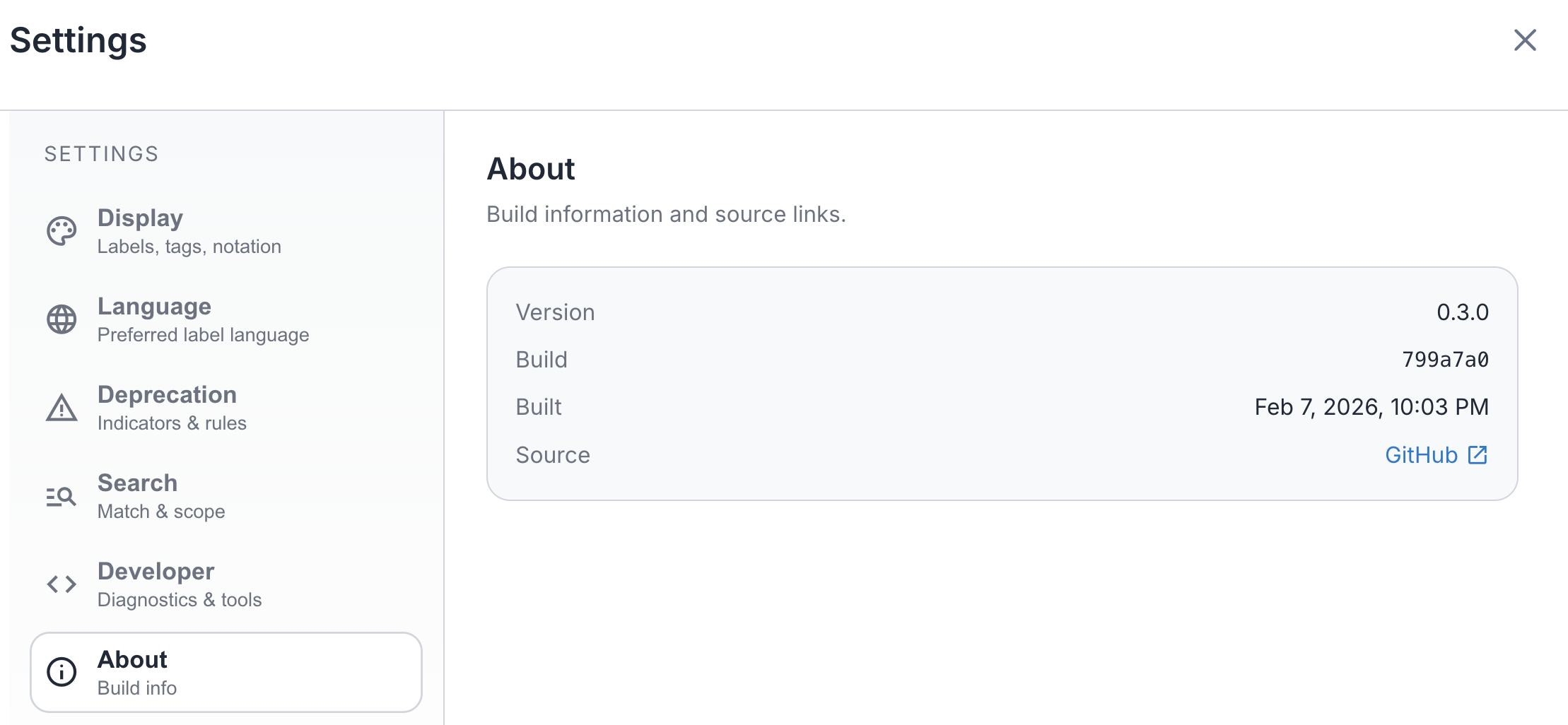
About Section
View build information including version number, build commit, build date, and a link to the source code on GitHub.
Pre-configured Deployments
Some deployments of AE SKOS may be pre-configured by administrators:
- A custom logo may appear in the header for branded deployments
- Endpoint management features may be restricted
- Some settings (like Developer Mode) may be hidden
If you're using a pre-configured deployment and need to modify settings, contact your administrator. Administrators can find setup instructions in the Deployment Guide.
Reset to Defaults
Click "Reset to defaults" to restore all settings to their original values.