
Resource view
Opening a resource shows everything AE RDF knows about it: its attributes, the resources it links to, and the resources that link back. Every part is a live query against the endpoint.
Opening a resource URI
Paste a resource URI in the top bar and press Go to inspect it. If the URI belongs to a different configured dataset (matched against each endpoint's resourceNamespaces), the app switches to that endpoint automatically and opens the resource there, with a brief "Switched to …" note confirming the change. For example, pasting a https://energy.ld.admin.ch/… URI while on CORDIS switches to LINDAS and loads it. Deep links (a shared ?resource= URL) switch the same way.
Attributes and relationships
Opening an instance (from a list, a link, or the top bar) shows the resource.
The header gives the resource's label (or local name if it has none), its full URI (click it to dereference, opens in a new tab) with a copy  button, its type chips (most specific first; click one to browse all instances of that type), and a graph summary.

Attributes are properties whose values are literals (dates, statuses, text), each shown with its language or datatype tag.
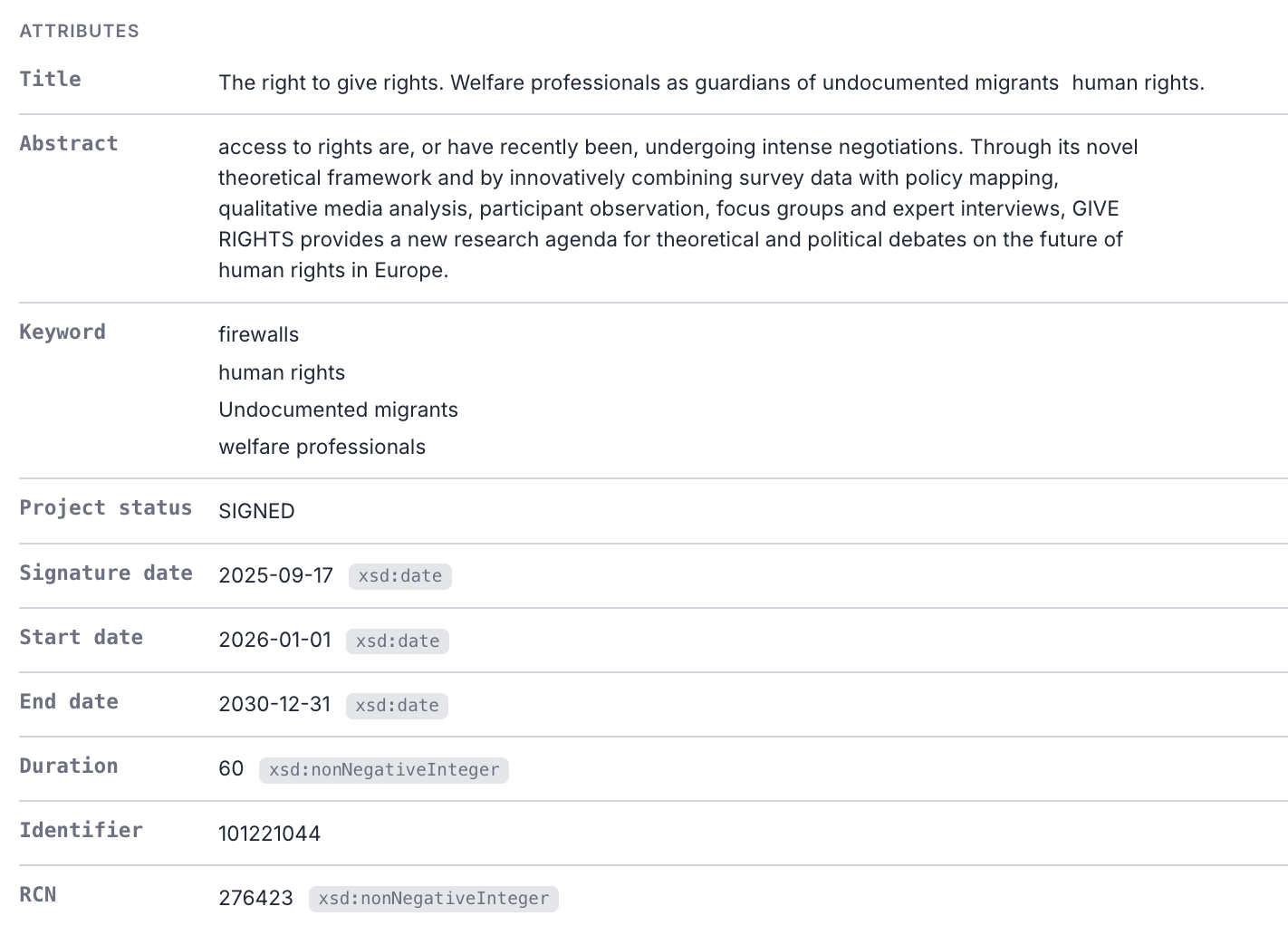
Properties appear in the order the curator set for the type (the order field); anything unlisted follows, labels and identifiers first.
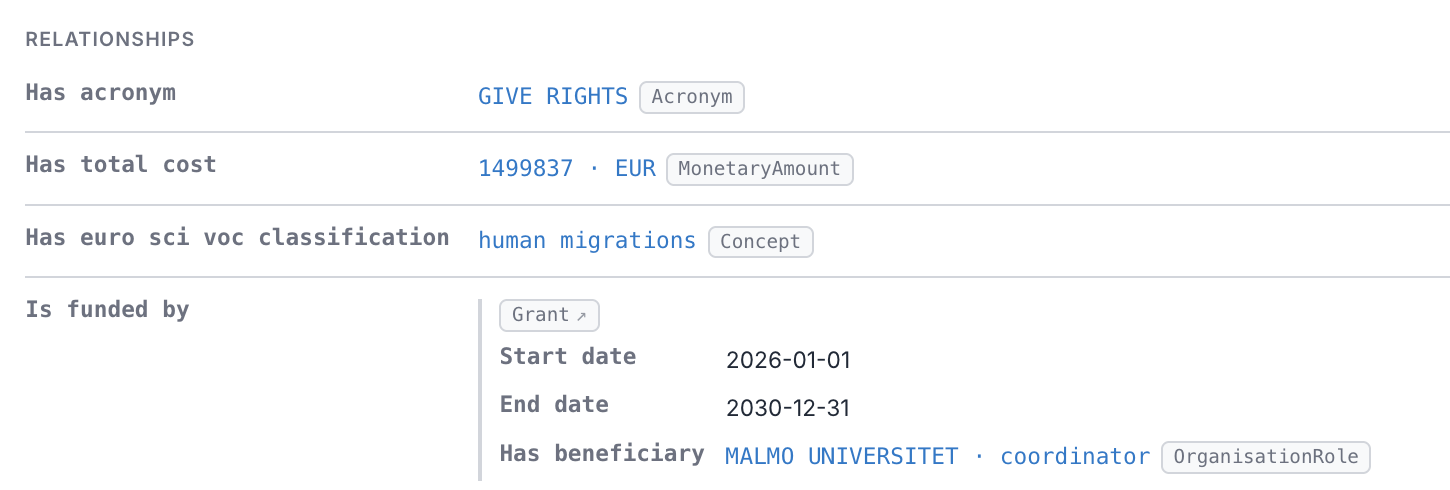
Relationships are properties whose values are other resources. How each value renders depends on the target type's render config:
- Link (default): a clickable link
 to that resource, shown with its label and a type badge for the most specific type (e.g.
 [Concept]). - Label: a value object shown as a single composed identity in place (e.g. an
AcronymasGIVE RIGHTS, aMonetaryAmountas1499837 · EUR). It still links to the object, which has no page worth browsing on its own. - Embed: a value object with its own properties inlined in place (e.g. a
Grantshowing its start date, end date, and beneficiary), nested as deep as the data goes.
A property with a huge number of values (say a funding scheme linking thousands of grants) starts collapsed to a count with a Show first 100 link, so the page stays manageable. Once expanded, a filter box appears above the values: type to narrow the list by name or URI (matched against every value, not just the 100 shown, since they're all already loaded). The status line reports how many match; Esc or the ✕ clears it.
A link whose target has no data in the endpoint shows its bare local name with a warning marker (see Readable values). Properties the endpoint config hides are omitted; reveal them (greyed) with Show hidden fields in Settings.
Referenced by (incoming links)

Relationships above point outward. To see what points at this resource (which grants fund it, which organisations are involved, which results it produced), expand the Referenced by section at the bottom. It loads on demand (incoming links can be huge), shows how many resources reference this one, and lists them grouped by predicate with an inbound ↤ marker. A URI referrer is a clickable link, so you can walk the graph backwards too; a blank-node referrer (e.g. an owl:Restriction that points here via owl:onProperty) has no page of its own, so its own properties are inlined in place (onProperty … someValuesFrom Class) rather than shown as a bare anonymous id. Very heavily-referenced resources show the first 1,000.
Within each section, properties are ordered by usefulness: labels and identifiers first, then dates, status, and the rest. Predicate names are humanized for readability (dateEndApplicability becomes "Date end applicability"); hover a predicate to see its real qname/URI.
Readable values
Where a related resource has its own label, AE RDF shows it instead of an opaque code, so MENV reads as its full name when the endpoint provides one. A resource with no label shows its prefix:LocalName (distinct) plus a type badge, so several unlabeled links stay distinguishable. Objects under a predicate are sorted by their display text. A reference whose target has no data at all in the endpoint shows its bare local name with a warning marker, meaning that URI has no properties there, flagging a broken or incomplete link in the data.
Prefer raw URIs or prefixed qnames? Switch the URI display mode in Settings: Humanized names (default), Prefixed (skos:Concept), or Full URI. It applies to predicates, links, and type names.
Rich values (media, DOIs, geometry)
Certain values render richly rather than as bare links: inline images and audio/video players, DOI ↗ badges with optional citation cards, and map ↗ badges with optional embedded maps for WKT geometry. See Rich values.
Follow links and share
Clicking a relationship value opens that resource, and where you are (endpoint, type, resource, filters) is kept in the URL, so any view is bookmarkable and shareable and browser back/forward work. See Shareable URLs and deep-linking.